Fewer clicks. More time for your guests.
With my APRO Admin and the APRO Assistant you can do lots of things simply in the chat: set up your menu, change prices, add staff, check figures. Just type what you need. The Assistant creates and changes things – and shows you beforehand what will happen.
- PHASE 01Set upA photo of your menu becomes your POS system.With your partner
- PHASE 02ManageMake changes by chat, not by clicking through menus.You, in the chat
- PHASE 03AnalyseAsk your figures instead of hunting for them.You, in Reports
- PHASE 04SolveHelp in the chat and support that checks the facts.You and your partner
Photograph your menu. Your POS system is ready.
01 · Set up
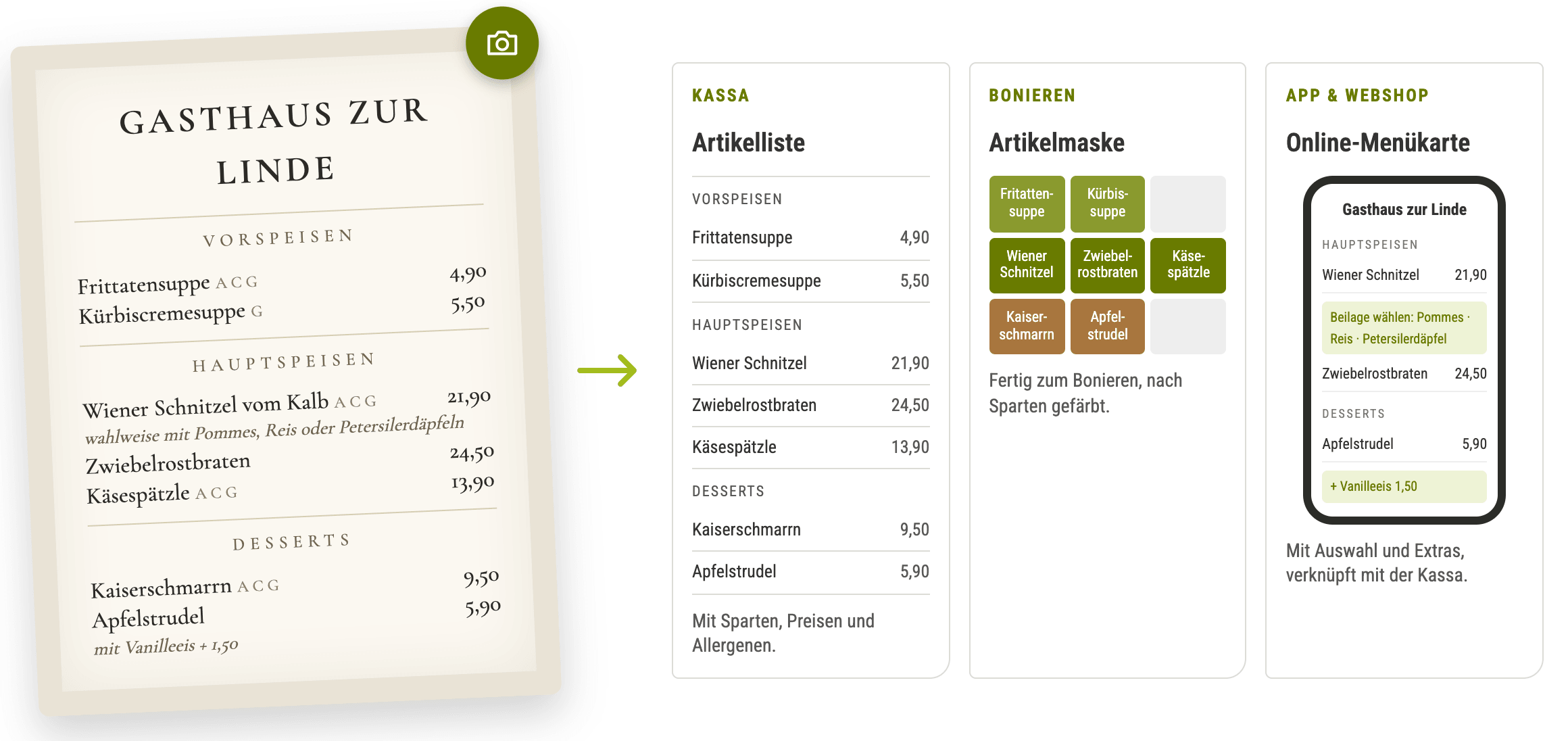
Upload a photo or PDF of your menu – Excel works too. The APRO Assistant reads the menu and creates three things in one go: the item list for the POS system, the item screen for order entry and the online menu for the app and webshop.
Sample menu for illustration purposes.
Copied exactly, not guessed
The AI copies exactly what’s on the menu. If anything is missing, it asks.

Prices
Prices are copied exactly: “12,50” becomes € 12.50.
Choices
Choices such as “with chips or rice” become an option in the online menu.
Extras
Extras with a surcharge are created as priced add-ons.
Allergens
Allergens end up where they belong: on the item.
Missing prices
Missing prices are queried rather than made up.
Preview
Preview before creating: nothing is applied until you give your OK.
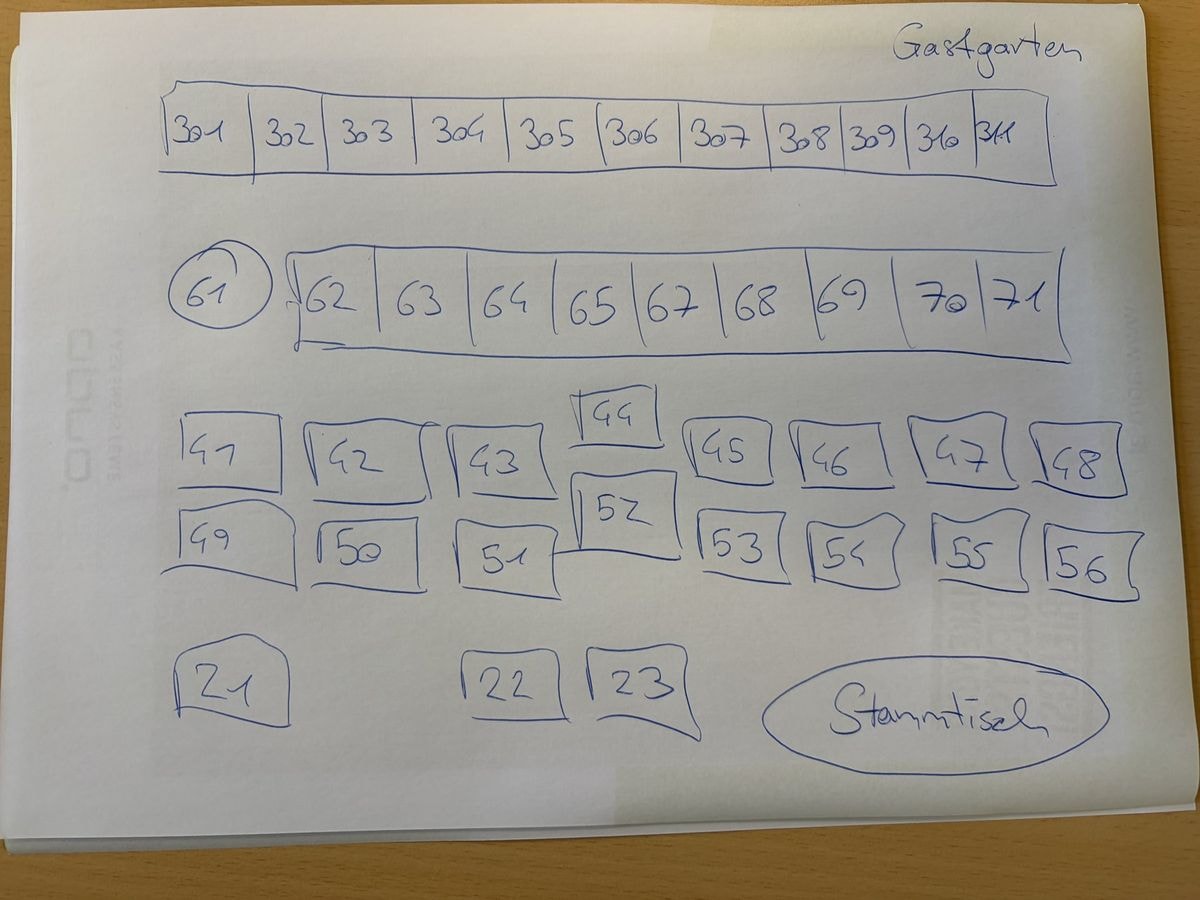 SKETCHPOS
One sentence instead of ten clicks
02 · Manage
The APRO Assistant in my APRO Admin knows around 1,000 functions of your POS system. So it can actually get things done instead of just telling you where the button is. Choose a message:
menu.jpg
Here is our menu. Turn it into items, an item screen and the online menu.
Read menuCreate items (preview)Create screenCreate online menu
Found 7 dishes in 3 categories. The choice of side for the schnitzel becomes an option, vanilla ice cream an extra at € 1.50. I’ll set the allergens on each item. Here’s the preview:
Starters Frittatensuppe 4,90 · Kürbiscremesuppe 5,50Mains Wiener Schnitzel 21,90 · Zwiebelrostbraten 24,50 · Käsespätzle 13,90Desserts Kaiserschmarrn 9,50 · Apfelstrudel 5,90
Raise all spritzers by 20 cents.
Search itemsPrices (preview)
12 items affected. Before I save, here is the preview:
Spritzer weiß 1/4 3,60 → 3,80Spritzer rot 1/4 3,60 → 3,80Aperol Spritz 6,90 → 7,10… and 9 more
New waitress: Anna Huber, from Monday, outdoor seating only.
Create operatorAssign area
Created. Anna Huber, active from Monday, enters orders in the Outdoor seating area only.
Set the lunch menu so that it only applies Monday to Friday from 11:00 to 14:00.
Find screenScheduling
Done. The item screen “Lunch” is now active Mon–Fri from 11:00 to 14:00, otherwise the evening menu applies.
Where do I set up tip distribution?
Find setting
In my APRO Admin, under the POS settings. Here’s the direct link to the page. Shall I explain the options?
Sample dialogues for illustration purposes.
What you get done in the chat
Items and menus
- Create, edit and lock items – even many at once
- Prices, categories and vouchers
- Online menus from photo, PDF or Excel
Tables and screens
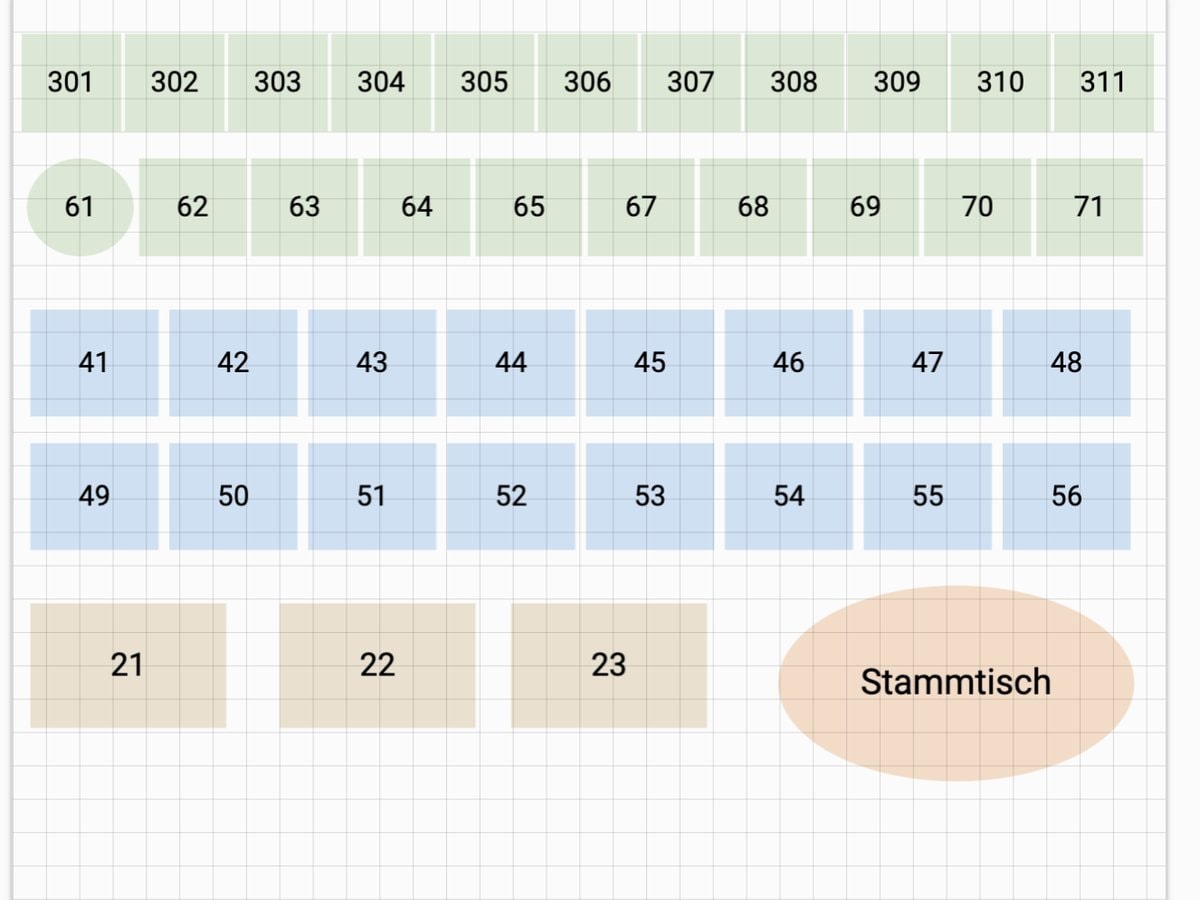
- Areas, tables and graphical table plans
- Item and table screens, including time-based ones
Team and workflows
- Create operators and assign them to areas
- Waiter settlement and daily closing
- Order manager and print routing
Stock
- Purchase orders and goods receipt
- Stocktaking and counts
Figures
- Quick questions about your sales
- Reports as CSV or PDF
Help
- “Where do I find …?” with a direct link
- Answers from the APRO documentation
- Your chats are saved
Ask your figures instead of hunting for them
03 · Analyse
How did Saturday go? Which items sell and which don’t? Reports and Cockpit look the same. The Cockpit can do more: AI reporting and the data from your other systems.
Help when you need it
04 · Solve
The APRO Assistant answers many questions directly. And if you’re really stuck, your partner and APRO support take a look – with your permission – instead of guessing.
Everything for the guest. AI takes care of the rest.
Alles für den Gast · 7–10 November 2026 · Salzburg · Hall 10 · Stand 10-1265
Book a demo
Take 30 minutes and bring your menu. We’ll show you live what it turns into.
Prefer to get in touch directly?